
Package Versioning
Package versioning lets you update a recurring package while preserving everything the previous version already delivered. With a new version, you can change or broaden your targeting criteria and then re-score all your content.. Each version is its own package, linked back to the original in the JSON.
Versioning is different from duplicating. Use the one that matches your intent:
Versioning vs. duplicating
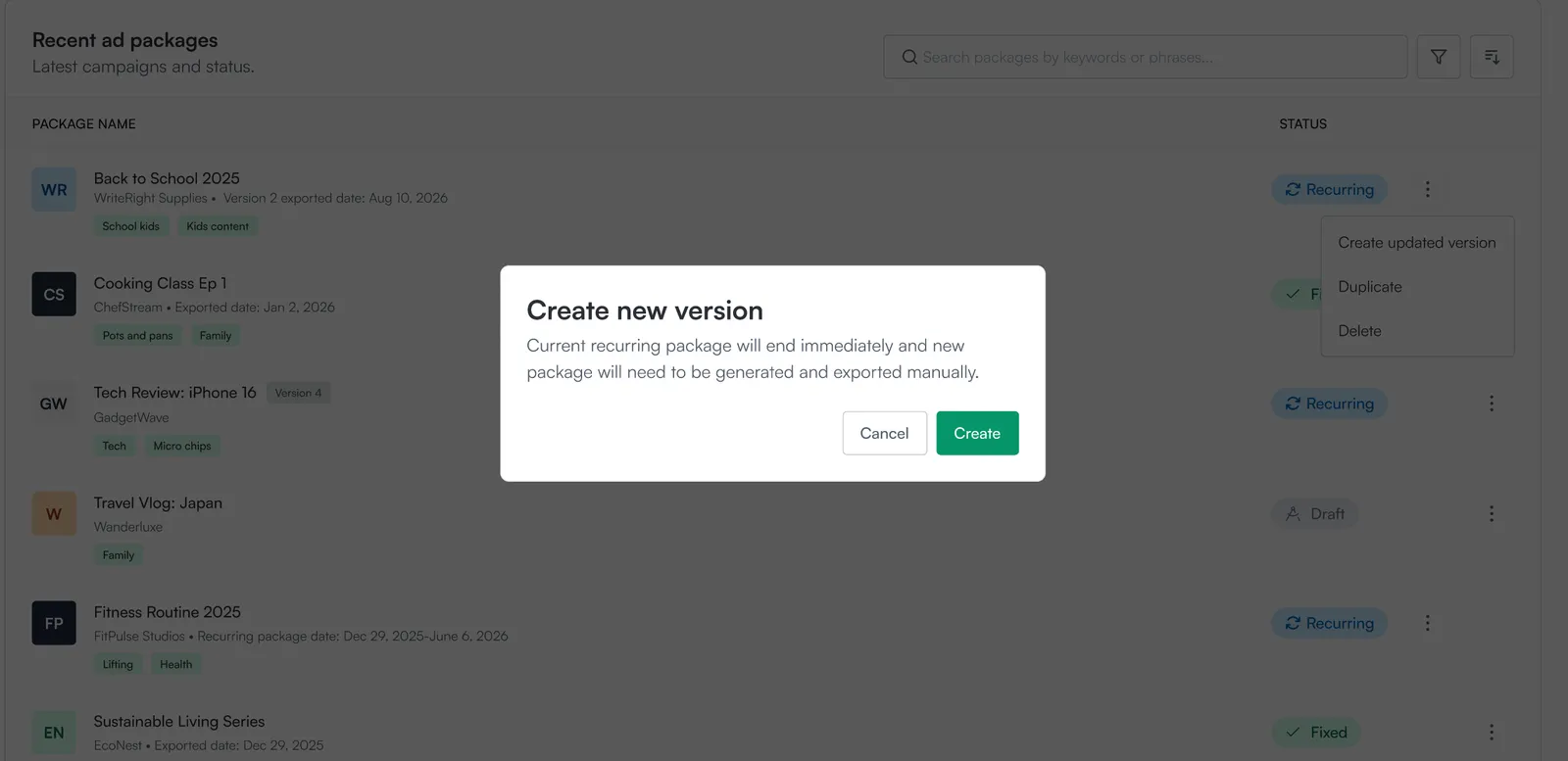
Only one version is active at a time. Creating a new version ends the current one immediately, so if you want the two running in parallel, use Duplicate instead.
Create a new version
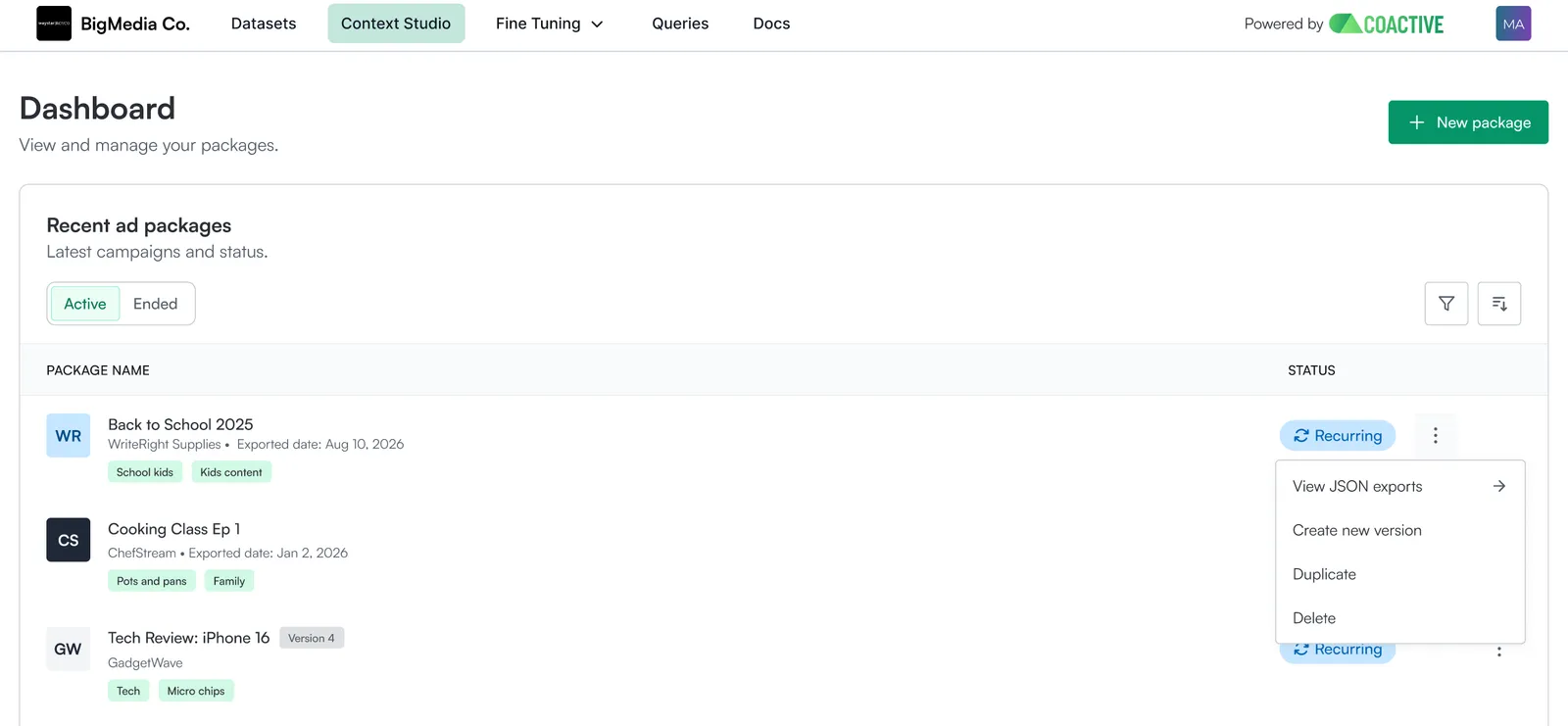
From the package’s ⋮ menu on the dashboard, choose Create a new version (this is a separate option from Duplicate). The package must be recurring and in an exported state.
Finding your versions
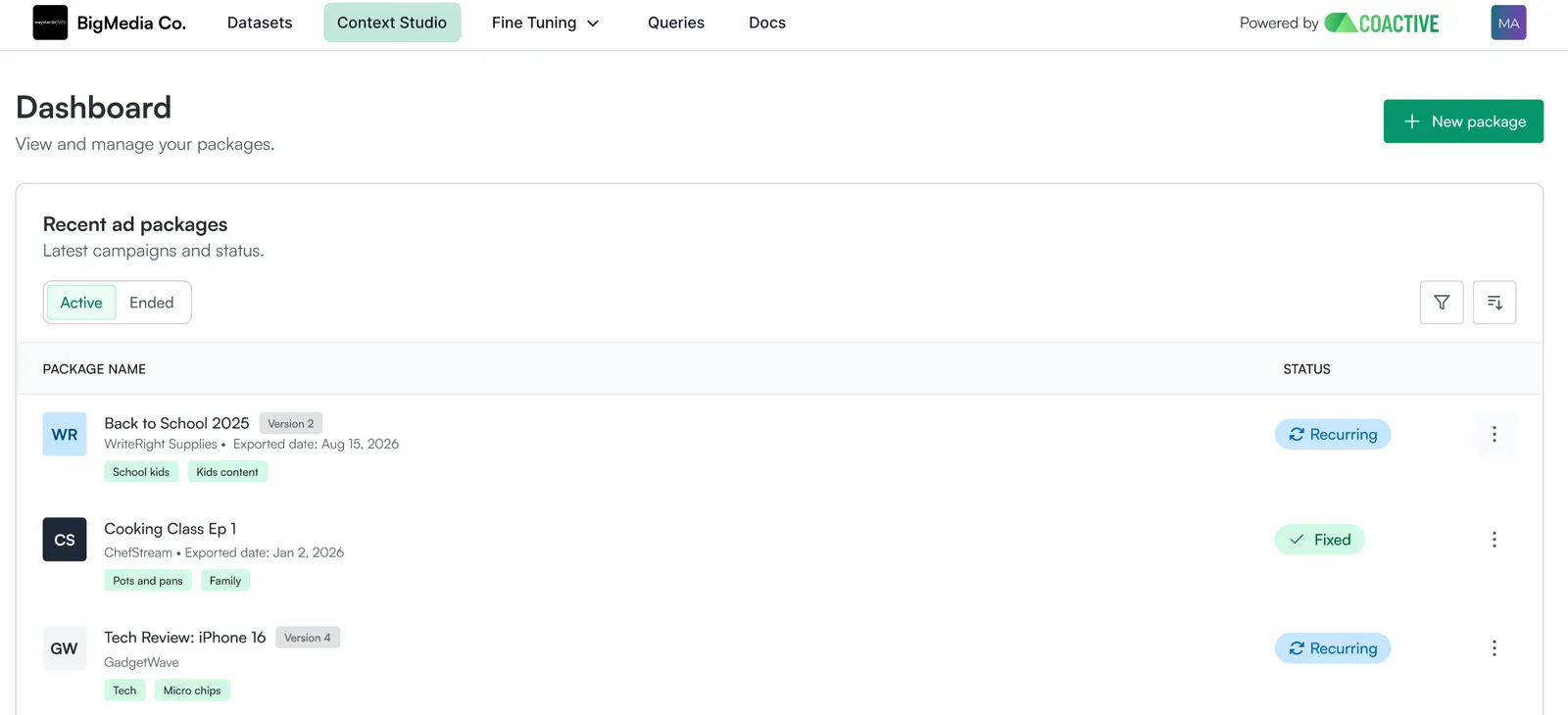
- The dashboard has Active and Ended views. When you create a new version, the previous one moves to Ended but stays viewable, and its JSON exports are preserved.
- Each package row shows a version label (e.g., “Version 2”). Each version is its own package, so only that version’s JSON exports appear within it.
How versions appear in the JSON
Every export’s package_metadata identifies the version:
package_id: the primary key; a new id (a full UUID) per version.package_name: constant across versions.version: increments each time (1,2,3, …).export_mode: what this export is.original: the first publish of a package.delta: a daily recurring run that includes only the new assets that newly qualify for the recurring package since the last run. (Deltas are specific to recurring packages; each daily run drops just what’s new.)refresh: a new version, with all content re-scored (a fresh, complete baseline).
root_package_id: thepackage_idof the original version (nullfor the first version). This links every version back to where it started, in the JSON.
A new version’s first export looks like this:
After that, the daily recurring runs continue under the new version as export_mode: delta.
Want more on how recurring packages work? See Recurring Packages.
Good to know
- History is preserved. The previous version’s exports stay available and nothing already delivered is rewritten.
- Name and client stay the same across versions; the version number distinguishes them.
- Manual exclusions carry over. A new version keeps the exclusions from the previous version, and you can keep them or remove them as needed.
- Edge case: if you broaden your targeting in the new version, anything you’d previously excluded stays excluded and may now overlap with your wider criteria, so it’s worth double-checking your exclusions after broadening.