
Overview
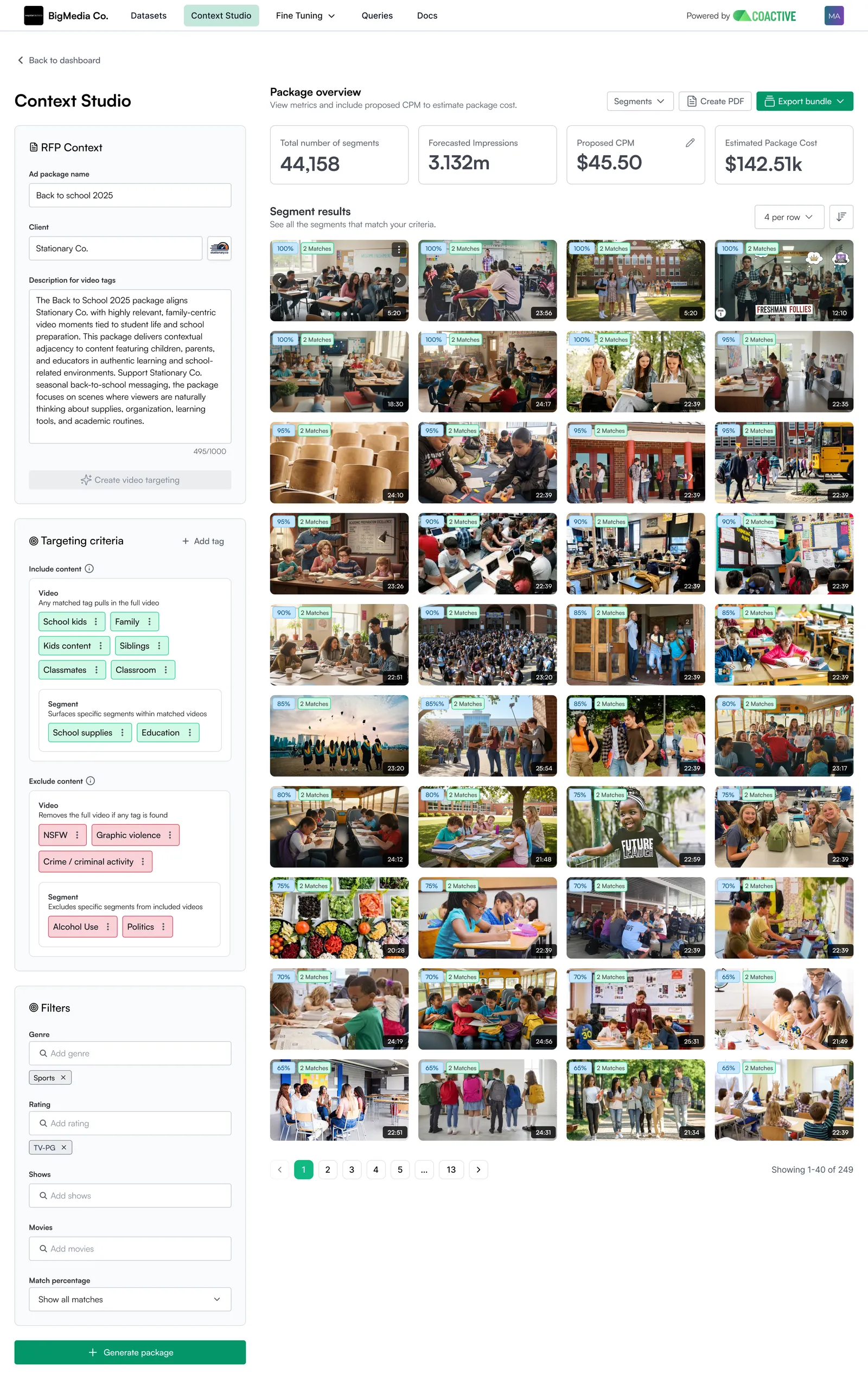
Context Studio is Coactive’s application for translating advertiser briefs into contextual ad packages. It enables ad sales teams to automatically match brand intent to the right content moments across a large video library.
The Problem: The Intent Gap
Advertisers don’t buy demographics, they buy moments. A beer brand wants to reach viewers during sports highlights. A travel company wants to be next to aspirational adventure content. But traditional contextual targeting relies on coarse genre and show-level metadata that doesn’t capture what’s actually happening on screen.
The result is an intent gap: the distance between what a brand wants and what ad tech can actually find.
Context Studio closes that gap by using Coactive’s Multimodal AI Platform (MAP) to analyze video content at the shot level — understanding visual scenes, spoken dialogue, and on-screen context together — and then surfacing the exact moments that match an advertiser’s brief.
What Context Studio Does
With Context Studio, you can:
- Turn a brand brief into a content package in minutes — describe what you’re looking for in plain language and let AI suggest the right targeting tags automatically
- Build precise include/exclude packages — specify which content moments must be present and which must be avoided, with fine-grained control over how strictly each condition is evaluated
- Target at the video level or the scene level — match against full episodes or specific scenes between ad breaks (requires Scene Segmentation; see Scene Segmentation Guide)
- Generate forecasts and export-ready bundles — review estimated impressions and CPM before exporting a JSON bundle
Who This Is For
Context Studio is designed for two audiences who work together:
Ad Sales Teams use Context Studio to build and pitch contextual packages to advertisers. It gives you the language and data to articulate why a piece of content is right for a brand. It’s not just saying “sports content” but giving the opportunity for the user to say I want to find “high-energy moments with crowd celebration during championship games” in my content library.
Ad Operations / Technical Teams configure the underlying targeting logic, set confidence thresholds and aggregation methods, and manage the export pipeline to your ad server.
Key Components
Content Hierarchy
Coactive organizes video content into four levels:
Context Studio can target at the Video level or the Scene level. Scene-level targeting requires publishers to provide ad break timecodes via the Segment API — see the Scene Segmentation Guide.
Dynamic Tags
Dynamic Tags are AI-powered content classifiers created and managed in Coactive’s Video-Level Analysis (VLA) tool. Each tag is a visual or transcript-based concept — for example, outdoor_adventure, brand_safety_violence, or luxury_items.
Tags are the building blocks of every Context Studio package. Before you can use a tag in Context Studio, it must be in Validated status in VLA.
Validated Status
When you review a tag’s performance in VLA and confirm its results look accurate, you mark it Validated (shown with a purple indicator). This is a quality gate because it signals that the tag has been reviewed and is ready for use in ad targeting packages.
Tags that are not yet Validated will not appear in Context Studio. If a tag you need is missing, check its status in VLA first.
Aggregation Methods
Each tag in a package has an aggregation method — the rule that determines how shot-level confidence scores are combined to decide whether a video or scene “passes” for that tag.
You set the aggregation method and its parameters (threshold %, minimum seconds) when adding a tag to a package.
Inclusion and Exclusion Tags
- Inclusion Tags define what content must be present for a video or scene to qualify for the package. You can set a Match Percentage to control how many of the inclusion tags must be satisfied (e.g., require 80% of tags to match rather than all of them).
- Exclusion Tags define what content disqualifies a video or scene. If any exclusion tag fires, that content is removed from the package, regardless of how well it matched on inclusion.
Match Percentage
The Match Percentage threshold controls how many of your inclusion tags a given video must satisfy to be included. For example, if you have 5 inclusion tags and set the threshold to 60%, a video that matches 3 of the 5 tags will qualify.
This is useful when you want broad reach and some tag flexibility, versus strict mode where content must satisfy every inclusion criterion.
Prerequisites
Context Studio is an application layer built on top of VLA (Video-Level Analysis). Before you can build a Context Studio package, you need:
- A Coactive account with Context Studio enabled for your organization
- VLA set up with Dynamic Tags already created and applied to your video library
- At least one Tag Group with Validated tags — tags must be in Validated status to appear in Context Studio
If you’re setting up VLA and Dynamic Tags for the first time, see the Dynamic Tags guide before returning here.
How It Connects to Your Ad Tech Stack
Once a package is built and reviewed in Context Studio, you export an Export Bundle. This is a structured JSON file containing all matching videos, their metadata, and the specific tag moments that triggered the match. This bundle can automatically be saved to an S3 bucket to be sent to your ad server.
Next Steps
Ready to build your first package? Head to the Context Studio How-To Guide for a step-by-step walkthrough.
For targeting at the scene level (individual ad slots within an episode), see the Scene Segmentation Guide.