
Scene Segmentation Guide
Scene Segmentation lets you target individual scenes within an episode, not just the episode as a whole. Each scene is the block of content between an ad break. By evaluating scenes independently, Context Studio can identify which specific ad slots within an episode are the right fit for your advertiser, and which ones aren’t.
Requirements
Before you can use scene segmentation, make sure you have:
- A Coactive dataset with video content ingested
- Ad break cue points for your content. These define where scenes begin and end. Without cue points submitted to Coactive, scene-level targeting is not available for that video and will default to video-level targeting.
- At least one validated tag group to use as a scene-level inclusion or exclusion tags
- Access to the Ad Segment Metadata API to submit your cue points (see below)
Cue points are typically the same ad break markers your playout system or CMS already uses for ad insertion. Export them in HH:MM:SS:FF format before submitting to Coactive.
How to Submit Cue Points
Scene boundaries are submitted to Coactive via the Ad Segment Metadata API. This setup step can be done after all your assets have been ingested. As a publisher, Coactive expects that you own the cue points and we do not check for overlapping cue points today.
See the Ad Segments API documentation for full endpoint details, request format, and examples.
Once cue points are submitted for a video, that video’s timeline will display scene boundaries in Context Studio automatically.
How to Add Scene-Level Tags
Once cue points are in place, you’ll see a Segment subsection within the Include and Exclude content sections of your targeting criteria panel.
For datasets without ad segments, the Segment subsection appears disabled — you can’t drag tags into it, and it shows the message “Scene Targeting requires ad segment” with an info tooltip: “This dataset does not currently have ad segments available. Please add ad segments to enable segment-only targeting.” To use segment-level targeting, the dataset needs ad segments; see Requirements and How to Submit Cue Points.
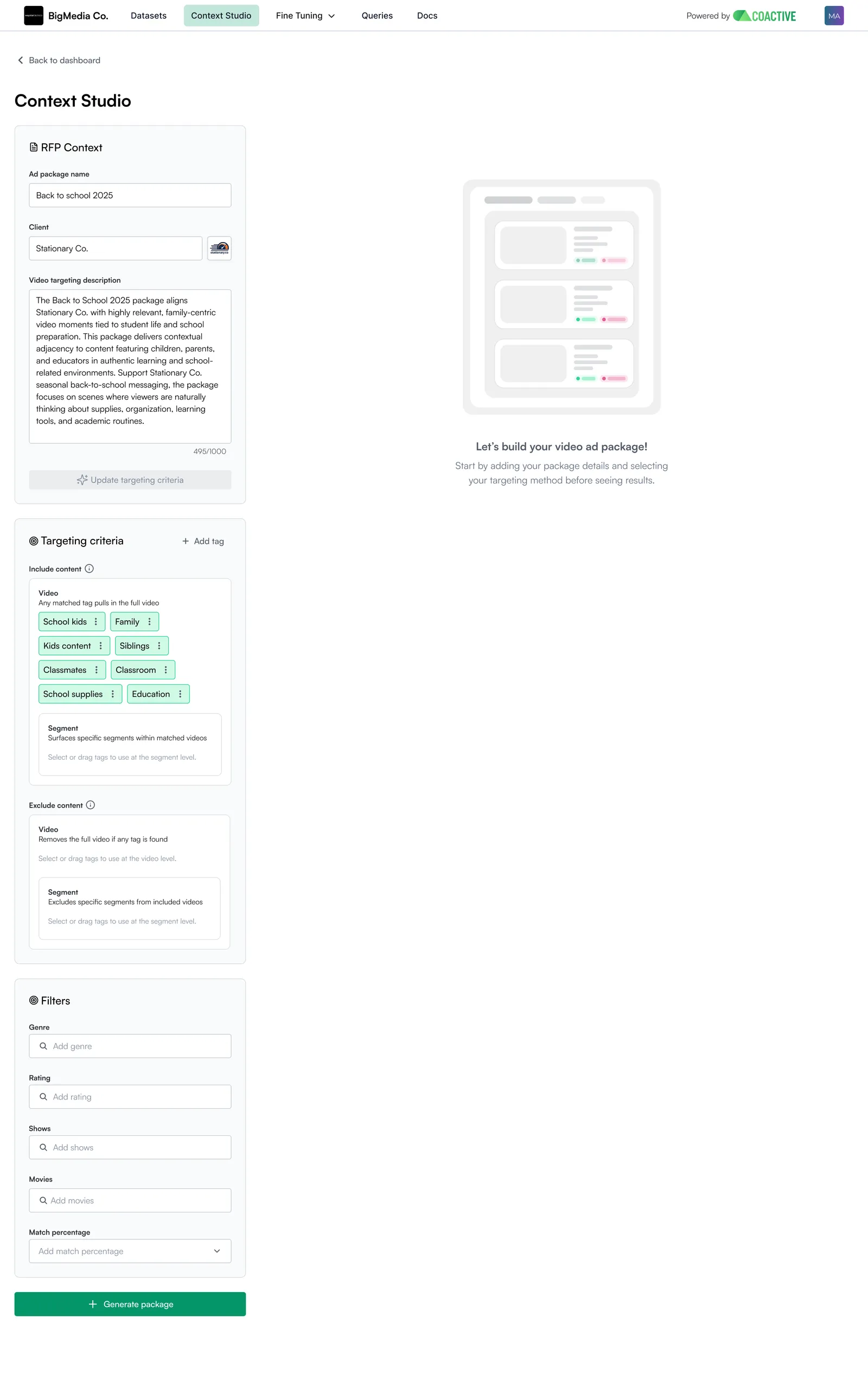
Adding a scene-level inclusion tag
- In the Targeting criteria panel, scroll to Include content
- Under the Segment subsection, click + Add tag → Add inclusion tag
- Search for and select the tag you want to evaluate at the video or scene level
- Configure aggregation settings — these work the same as video-level tags, but the calculation is scoped to the scene’s duration, not the full episode
Adding a scene-level exclusion tag
- Scroll to Exclude content
- Under the Segment subsection, click + Add tag → Add exclusion tag
- Select the tag — typically brand safety tags with Any Hit aggregation (one instance within the scene is enough to block that ad slot)
Each tag should be placed at either the Video level or the Segment level — not both. If a tag is active at the segment level, it’s understood to be true at the video level as well.
Example — school supplies brand
A back-to-school brand wants their ad to air right after scenes where kids are actively learning or getting organized for school. The right setup is:
- Video level:
FamilyorKids content— broad filters that establish the episode is in the right content universe (family reality shows, parenting content, lifestyle programming). This filters out content that’s thematically irrelevant. - Segment level:
ClassroomorSchool supplies— finds the specific scene right before an ad break where a student is actually doing homework, packing a backpack, or getting ready for class.
A family lifestyle show might have six scenes per episode. Two of them show a parent helping a kid get organized for the first day of school and those would be the premium placement for a school supplies brand. The other four (dinner conversation, weekend activities, family game night) are a fine content environment at the video level but not the ideal moment for a back-to-school ad.
Scene segmentation lets you sell those two high-value slots at a premium CPM.
Placing Classroom at both the video and segment level would be redundant since if a scene has classroom content in it, the episode clearly has school-related content too.
How Video and Scene Targeting Work Together
Video-level and scene-level criteria are two independent filters applied in sequence. Think of video-level targeting as the broad filter (genre, show type, overall brand safety) and scene-level targeting as the precise filter (is this specific ad slot the right moment for this brand?).
Inclusion — AND logic
A scene’s ad slot is valid only when the video passes its video-level inclusion criteria AND the scene passes its scene-level inclusion criteria.
Exclusion — OR logic
An ad slot is blocked if the video triggers a video-level exclusion tag (the whole video is out) OR if the specific scene triggers a scene-level exclusion tag (just that scene’s slot is blocked; other scenes in the same episode are unaffected).
If no scene criteria are set, Context Studio operates purely at the video level and no scene filtering is applied.
Only videos with at least one matching scene appear in your results when scene-level criteria are defined. Videos that pass video-level targeting but have zero matching scenes will not appear in the results list.
Reading the Timeline View
When you click into a video in your results, the Timeline Analysis view shows you exactly what’s happening across the episode.
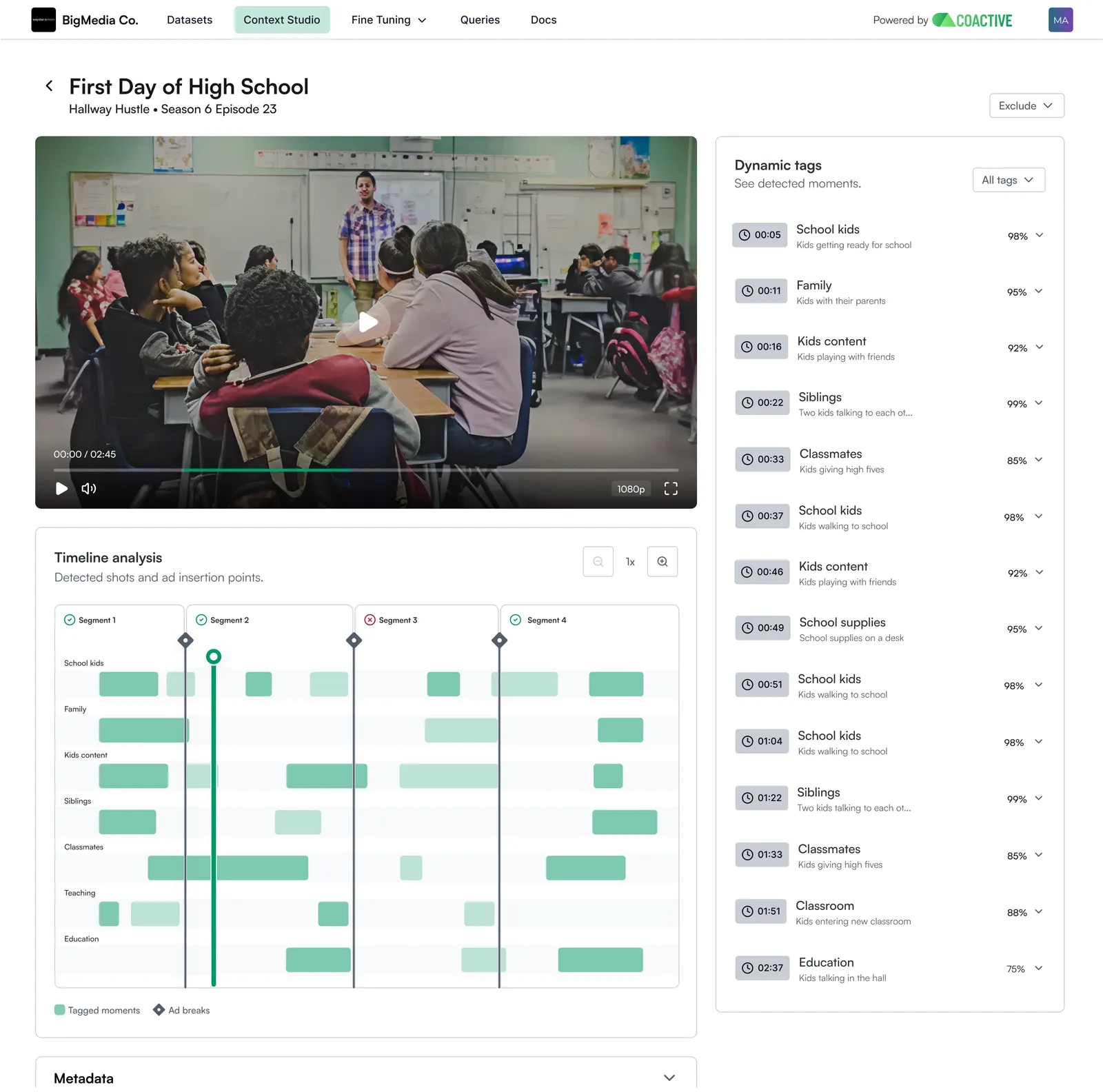
- Dark vertical lines with diamond markers — existing ad break cue points submitted via the API. These define your scene boundaries.
- Green bars — tagged moments where a given tag is active at or above the confidence threshold you set
- Segment labels (Segment 1, Segment 2, etc.) — each segment between two ad breaks, shown with a checkmark if it qualifies as a valid ad slot
This view lets you validate that the scenes being surfaced are genuinely the right contextual fit before the package is exported.
Things to Know
- No ad segments = no scene targeting. If a video doesn’t have ad segments submitted via the API, it’s evaluated at the video level only. Scene-level tags are not applied to it.
- Tags belong to one level. Place each tag at the video level (broad filtering) or the segment level (precise placement) — not both. Adding the same tag at both levels is redundant and not recommended.
- Segment-level matches imply video-level relevance. If a scene matches a scene-level inclusion tag, that video is by definition contextually relevant and you don’t need to duplicate the same tag at the video level.
- Scene exclusions are surgical. A scene-level exclusion only blocks that specific ad slot. The rest of the episode’s scenes are unaffected, preserving as much inventory as possible.
- The Segments results view can be empty. When reviewing package results, switching the results view to Segments for a dataset without ad segments shows an empty state reading “Scene Targeting requires ad segment data.” The same message appears in the targeting panel.